Material entries with batches enabled
*Please note, Material entries using items with batches enabled can only be done using the Tidy 2. If you do not have Tidy 2 and want to learn more, please read Get started - How to get Tidy 2. All data in your original Tidy account will be shared in Tidy 2, and vice-versa.
This feature is only available to material writers with auto approval enabled.
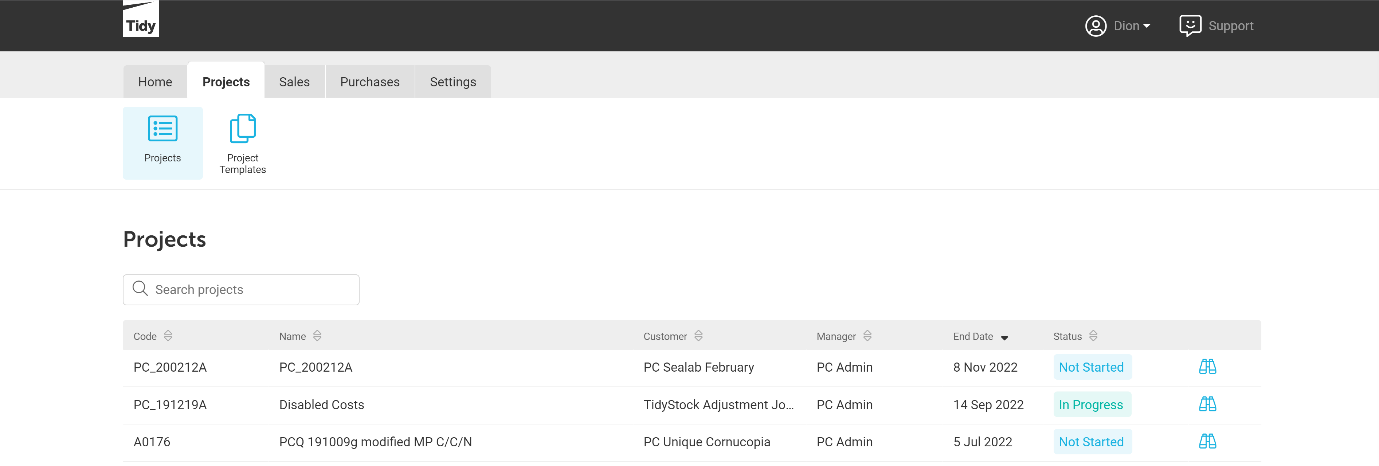
To begin entering materials for a project, within the Projects ribbon, click Projects.
You will then be presented with a list of the projects with multiple statuses. You can easily search for the project you want to enter materials for.
Click on the project you would like to enter materials for.
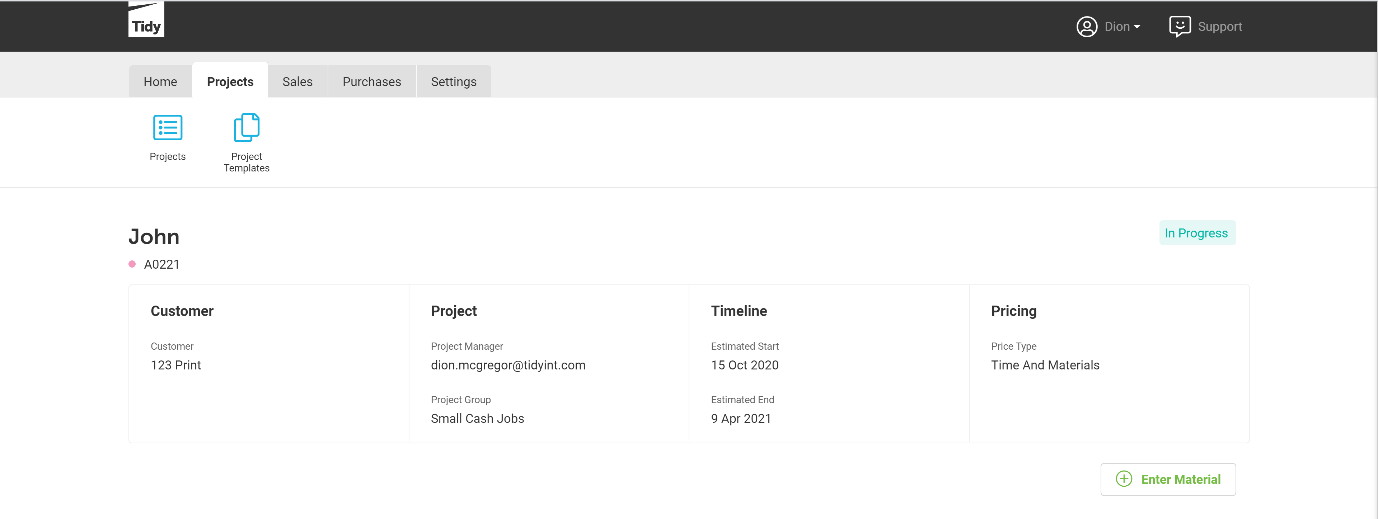
In the project you have chosen, click on Enter Material Indicated in the image below.
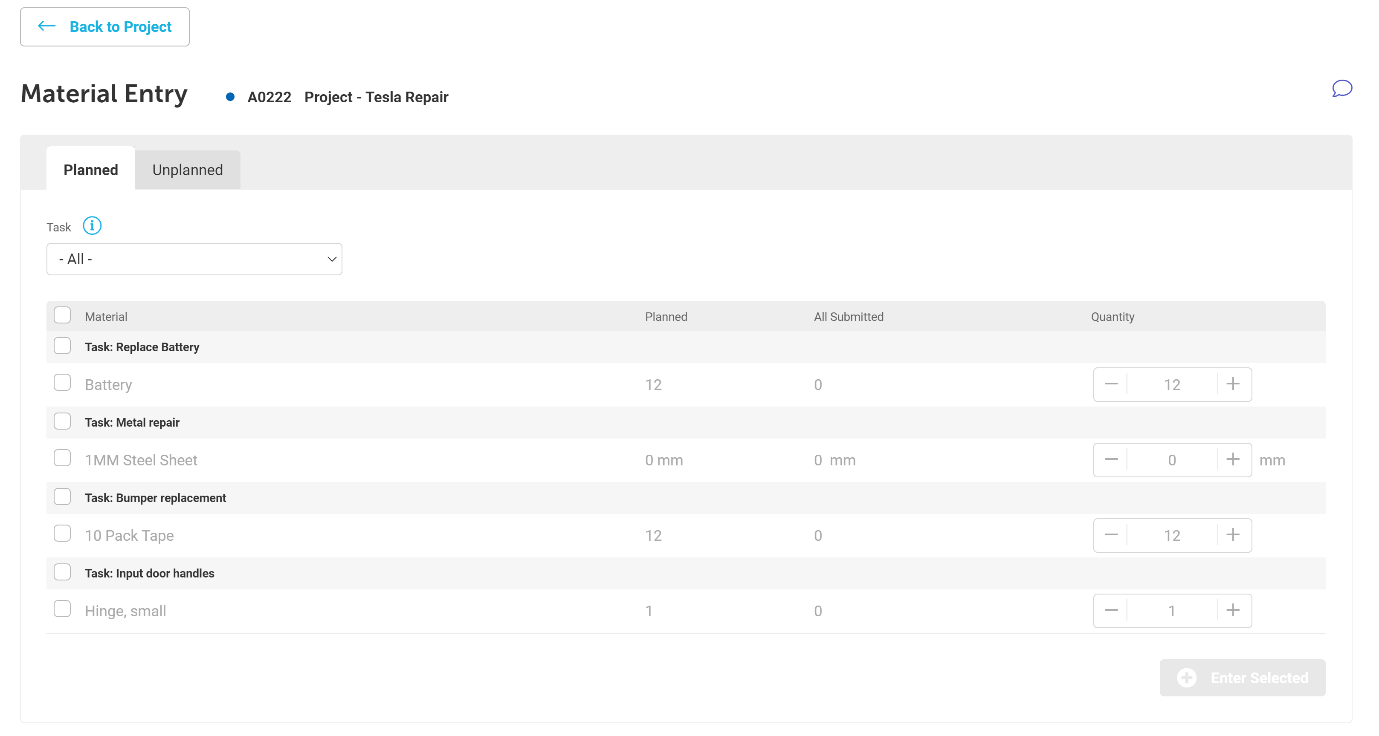
You will then see the Material Entry screen for the project you have selected.
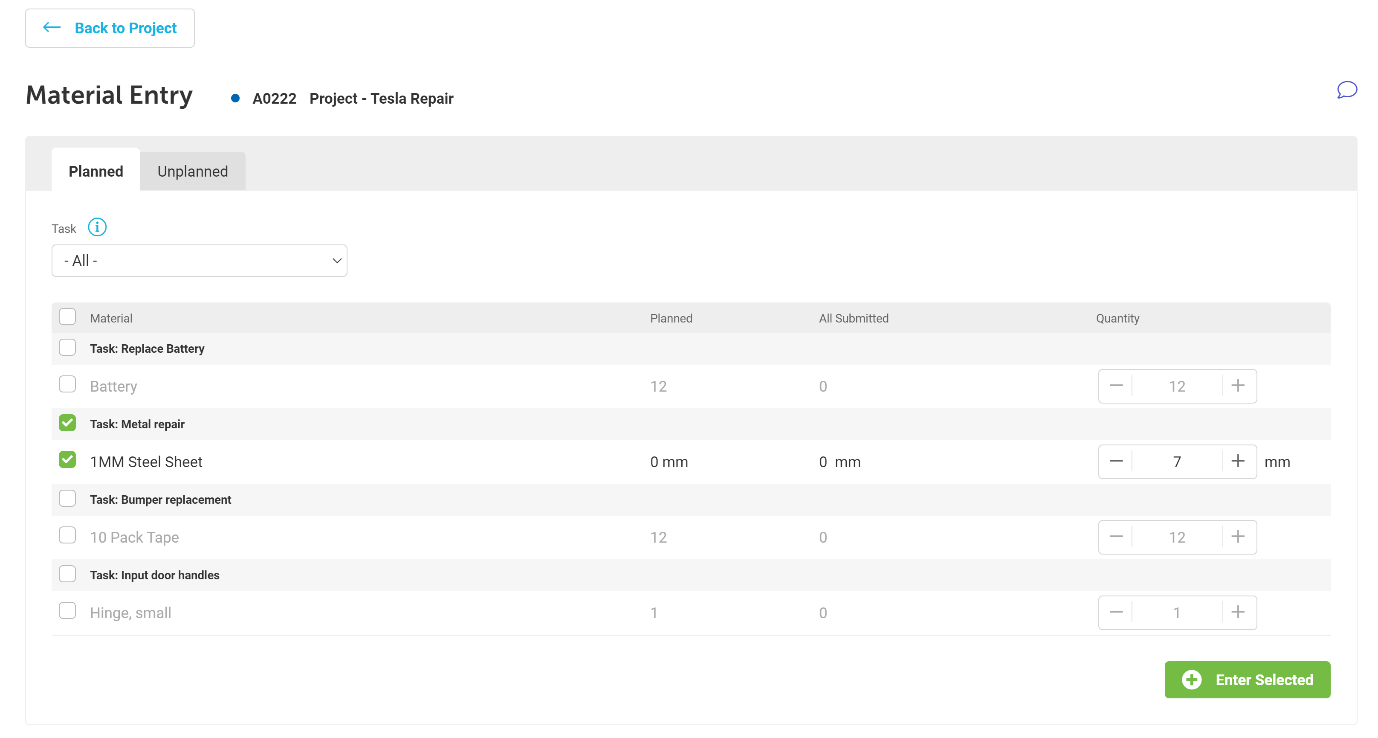
Enter the quantity of materials you have used (or not used) then select Enter Selected
Once you have entered your chosen materials, they will then display in your Unsubmitted Material Entries.

If the materials have batches enabled, an icon will display to the left of the delete button indicating this.
If the icon is orange, this means batches are not fully assigned. If the icon is already green, this means that the batches have been fully assigned and can be Submitted
Clicking the batches icon will display a pop-up screen enabling you to assign batches.
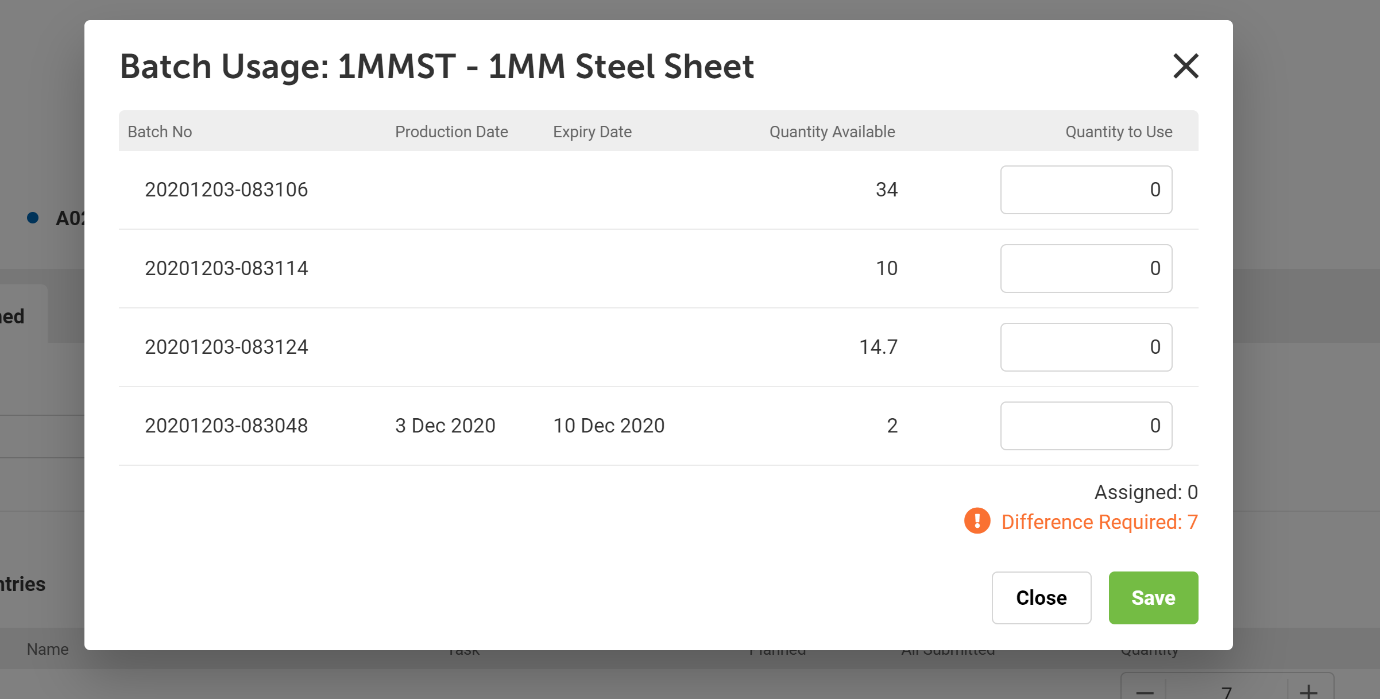
The Difference Required is the difference between the batched materials you have used and assigned.
Once you have assigned all the batches, the difference required will be 0.
If you have assigned more batches than what is available, the box will be outlined in red.

Click Save
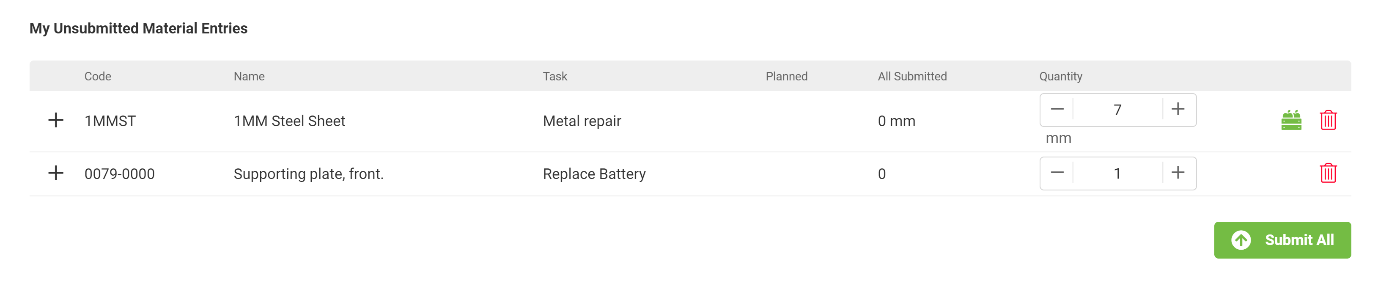
Once you have clicked save and all batches have been assigned, the batches icon will change to green.
Then, click Submit All
If you attempt to submit materials with batches enabled in the current Tidy, you will be prompted to do this in the Tidy 2.
The approval process for materials with batches enabled is limited to only reject. A rejected material entry may be resubmitted or reedited, or deleted from the Tidy 2 screen.

To learn more about Material Entries in Tidy 2, read Tidy 2 - Material Entries
*If you have any additional questions, please contact us.