Material entries
*To use this function you need Tidy 2 enabled for your organisation. If you dont yet have Tidy 2 enabled, please read Get started - How to get Tidy 2.
All data present within Tidy 2 will be visible within your current Tidy account, and vice-versa.
Material Entries within Tidy 2 are done on a project-by-project basis.
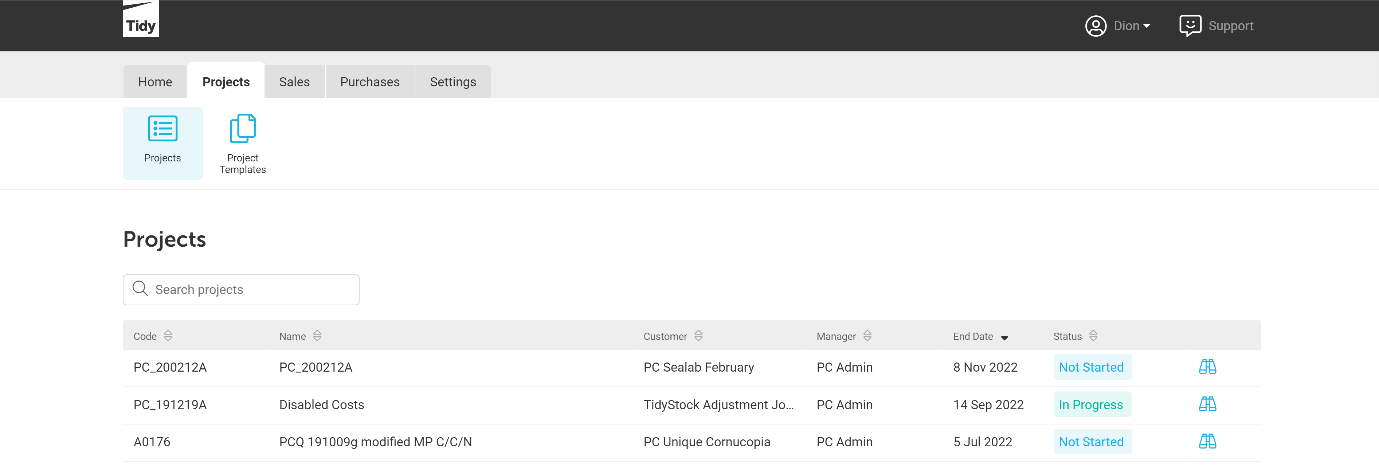
To begin entering materials for a project, within the Projects ribbon, click Projects.
You will then be presented with a list of the projects with multiple statuses. You can easily search for the project you want to enter materials for, or filter the list in the search bar shown below.
Click on the project you would like to enter materials for.
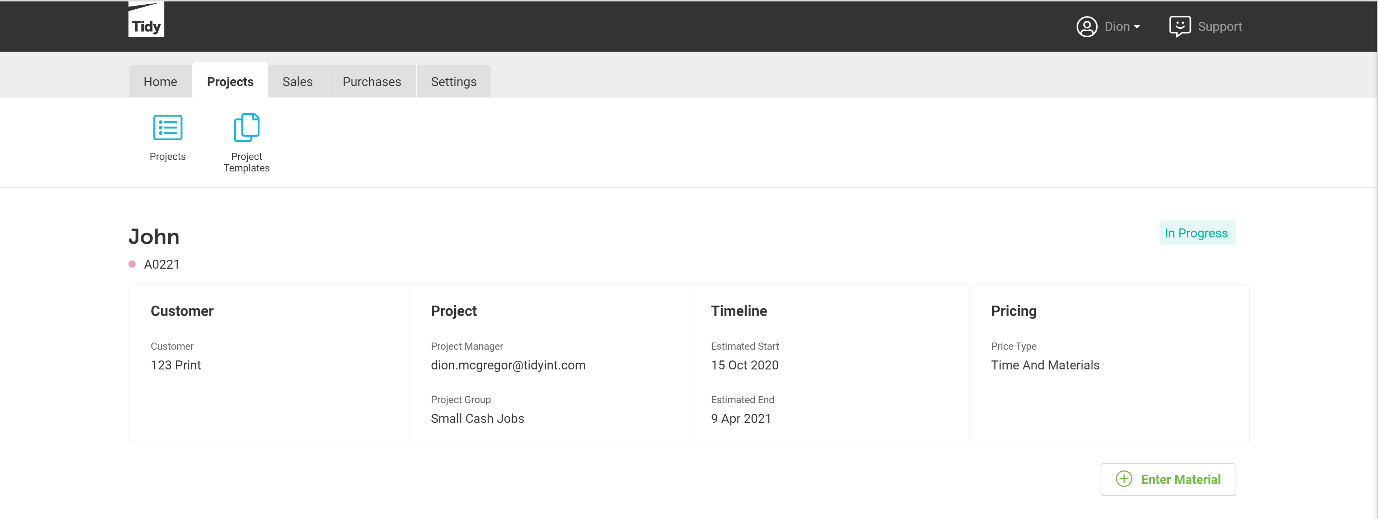
In the project you have chosen, click on Enter Material Indicated in the image below.
You will then see the Material Entry screen for the project you have selected.
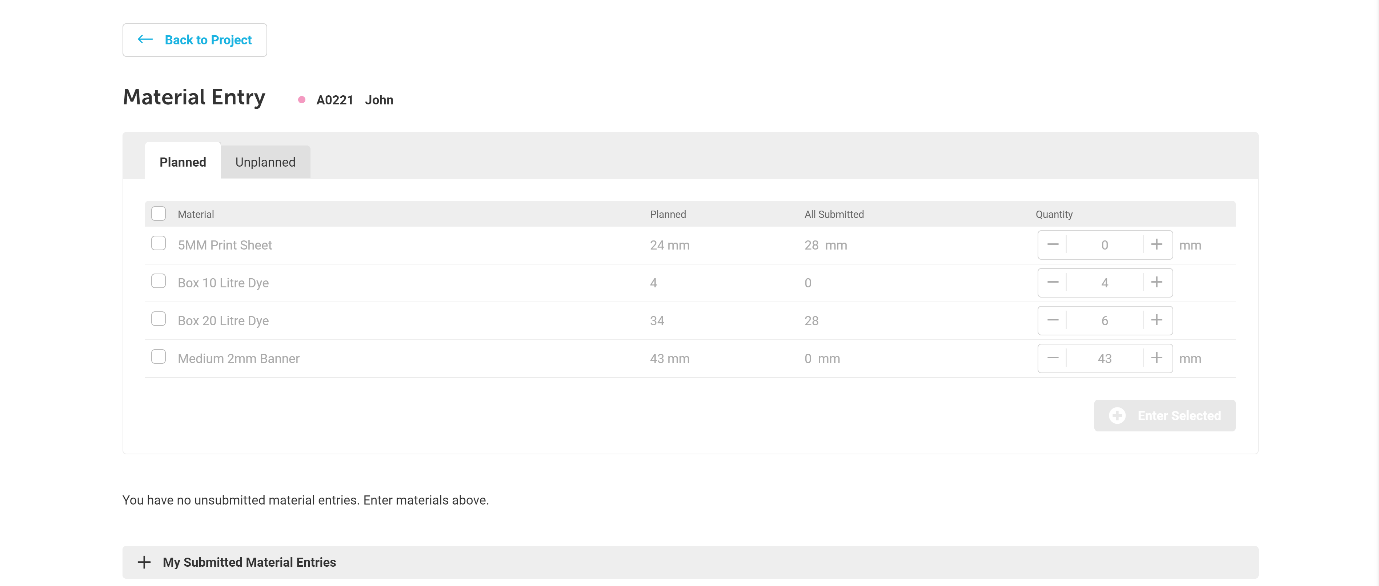
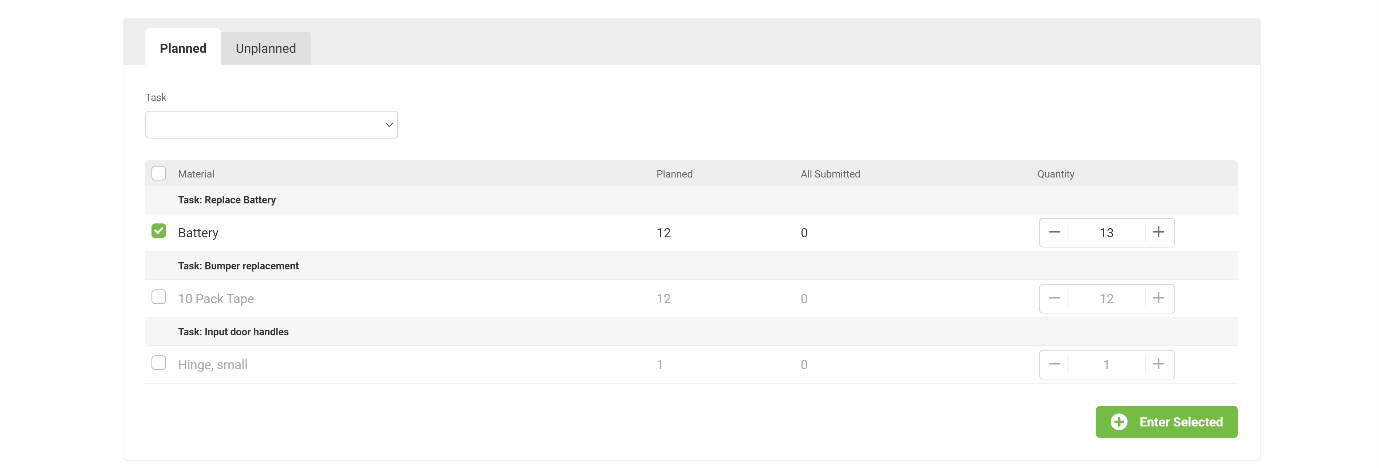
Enter the quantity of materials you have used (or not used) then click Enter Selected.
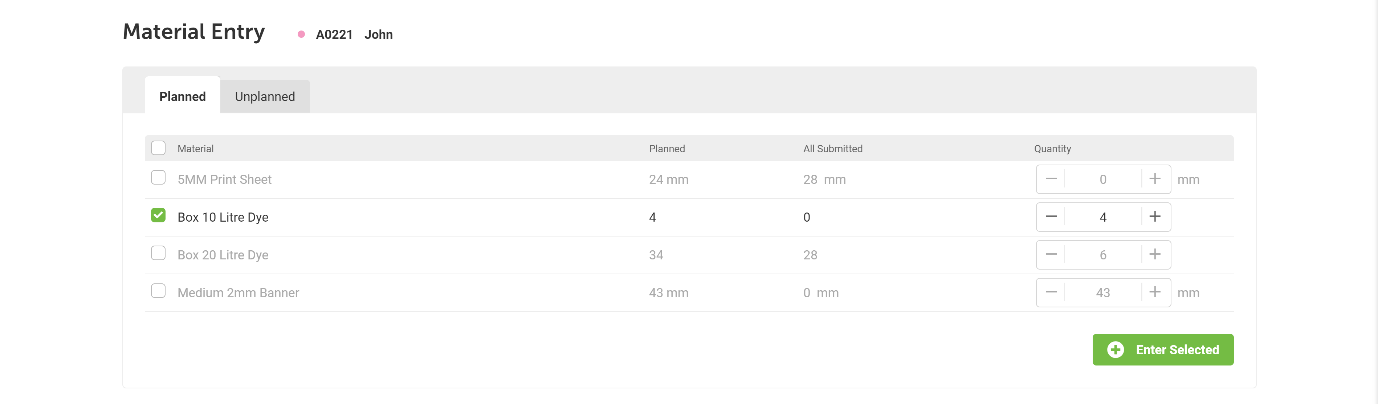
Once you have entered your chosen materials, they will then display in your Unsubmitted Material Entries.

When you have completed your material entries, click Submit All
Your submitted material entries will then show in My Submitted Material Entries

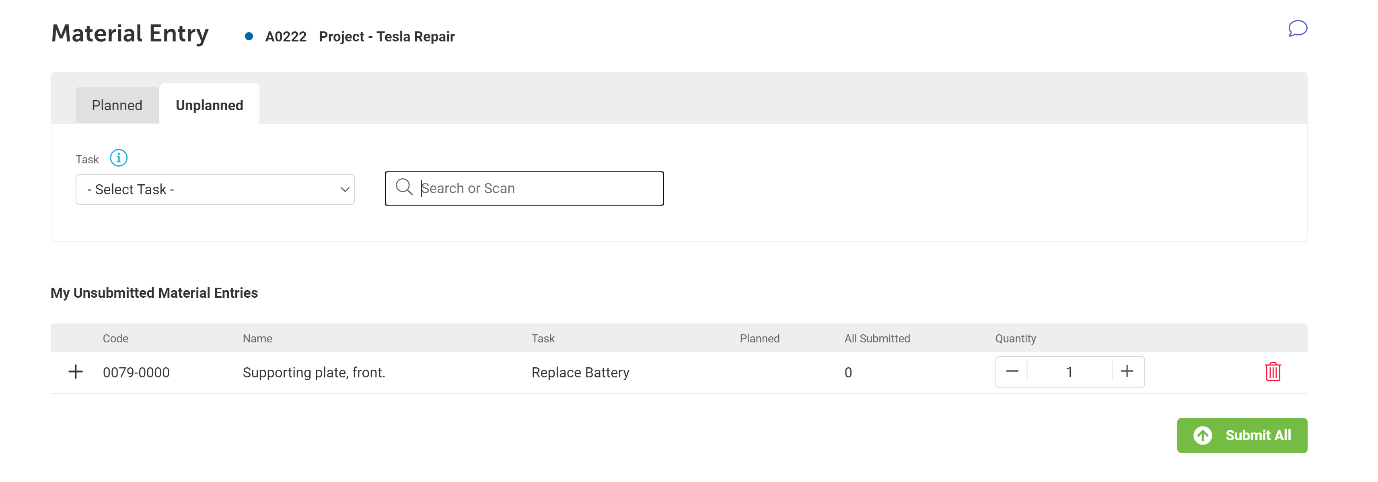
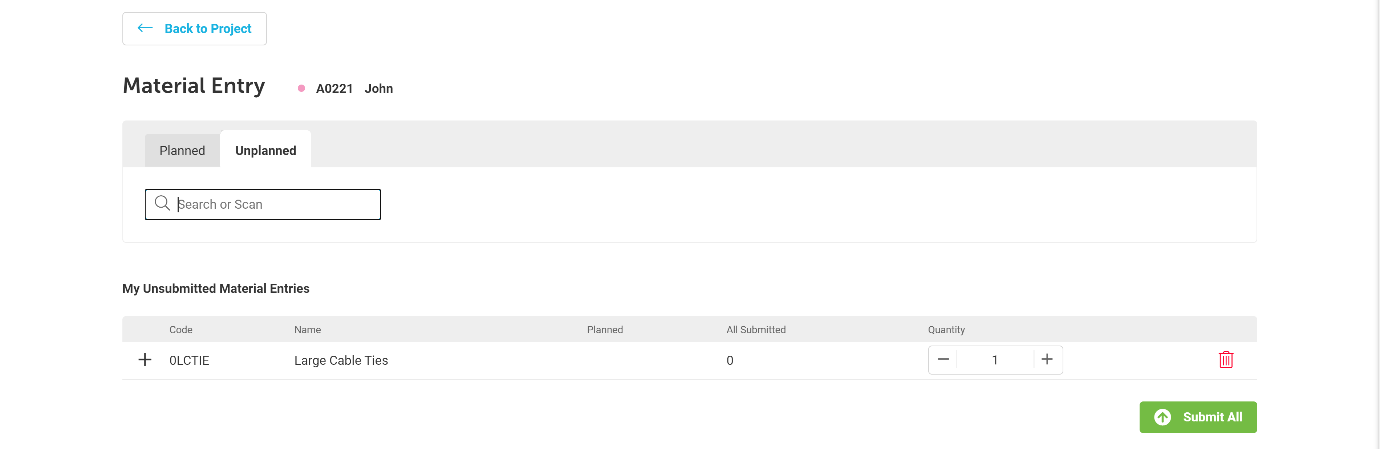
Within the Unplanned material entry screen, you can search for, or scan for material items to be submitted.
To learn how to enter materials with a barcode scanner, please read How to enter materials with a Barcode Scanner
Change the quantity of the materials you would like to submit by using the plus (+) or minus (-)buttons shown below.
Materials Under Tasks
For a project with materials under tasks, you will see a list of tasks for the project, as well as the materials associated with them.
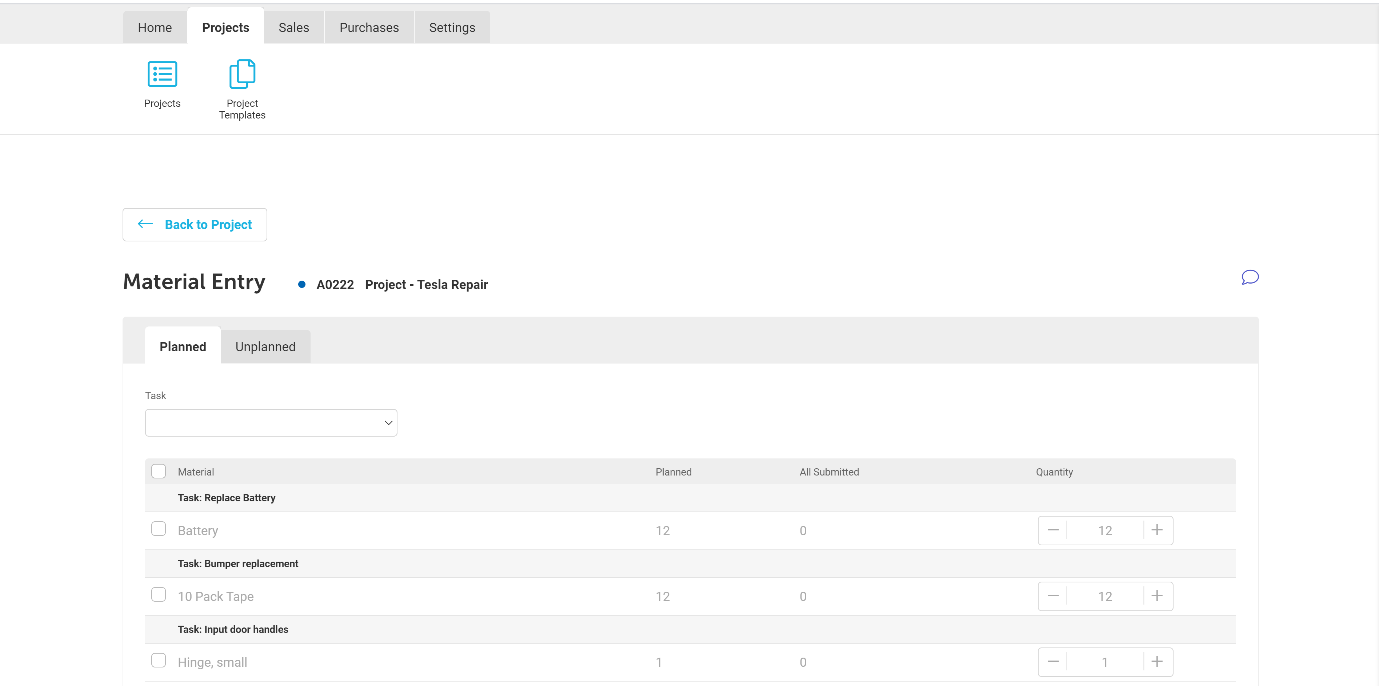
Clicking on the drop-down bar will display a list of tasks. You can select an individual task if you want to enter materials on a specific task.
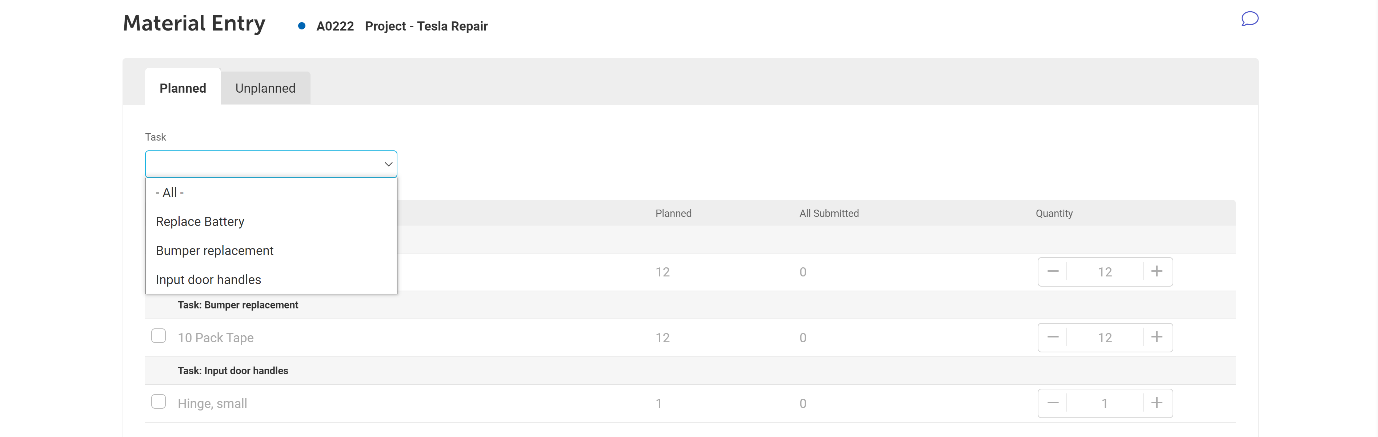
From there, the process of submitting materials is the same.
Unplanned Materials under Tasks
You can also enter unplanned materials for materials under tasks. Select the task you want to add materials for in the Task drop down, then search or scan for the material item you have used.
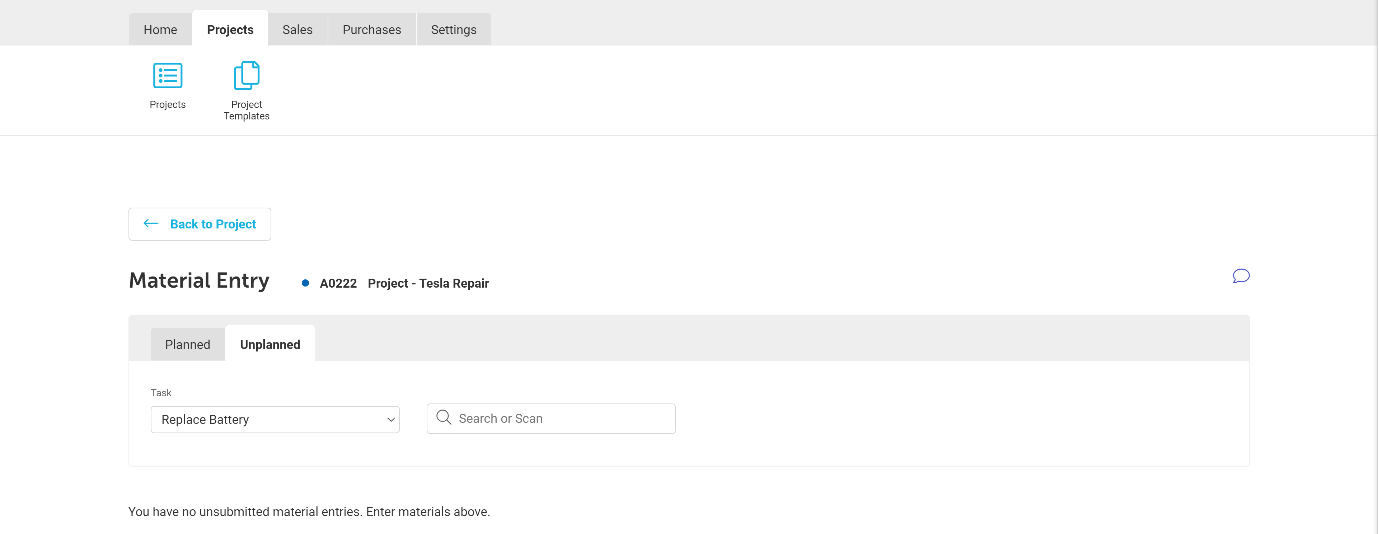
You can then submit your material items for a project with materials under tasks.