Invoice queue
Go to SALES & PURCHASES > Invoice Queue.
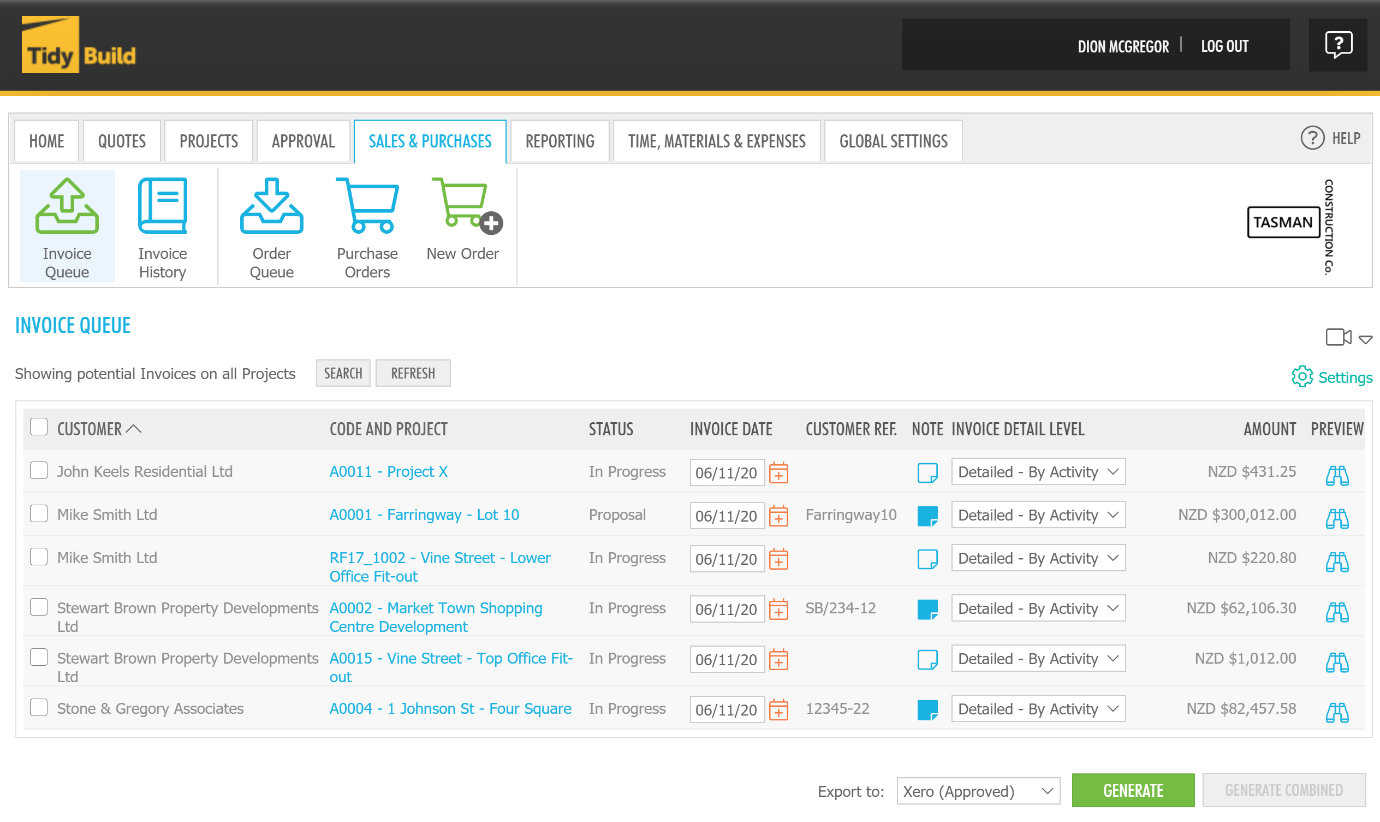
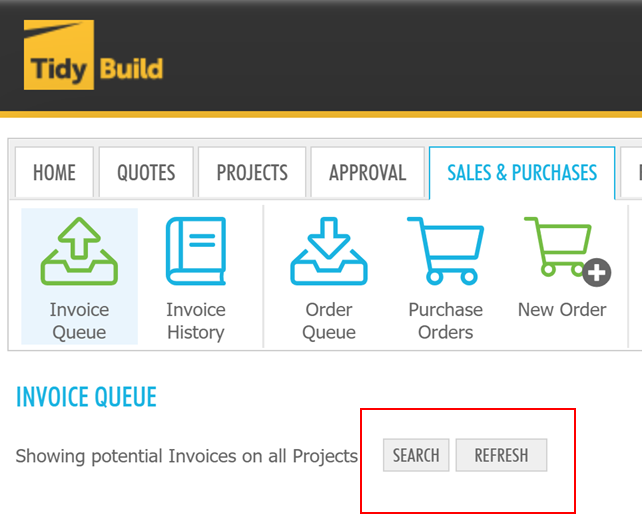
You will be presented with a screen showing potential invoices on all projects. You can filter the results based on the status of the project, the customer, the project name, or the end date of the project. If the invoice does not display, you can refresh the screen.
The task bar within the Invoice Queue screen will show multiple characteristics of the invoices shown.
These are:
Customer - The customer the invoice is for
Code and Project - The assigned project code and project name.
Status - The status of the project with four statuses. Not Started, In Progress, Closed, Completed
Invoice Date - A date of the invoice
Customer Reference (If Applicable) - A reference for the invoice
Invoice Note - Any additional notes about the invoice (optional)
Invoice Detail Level
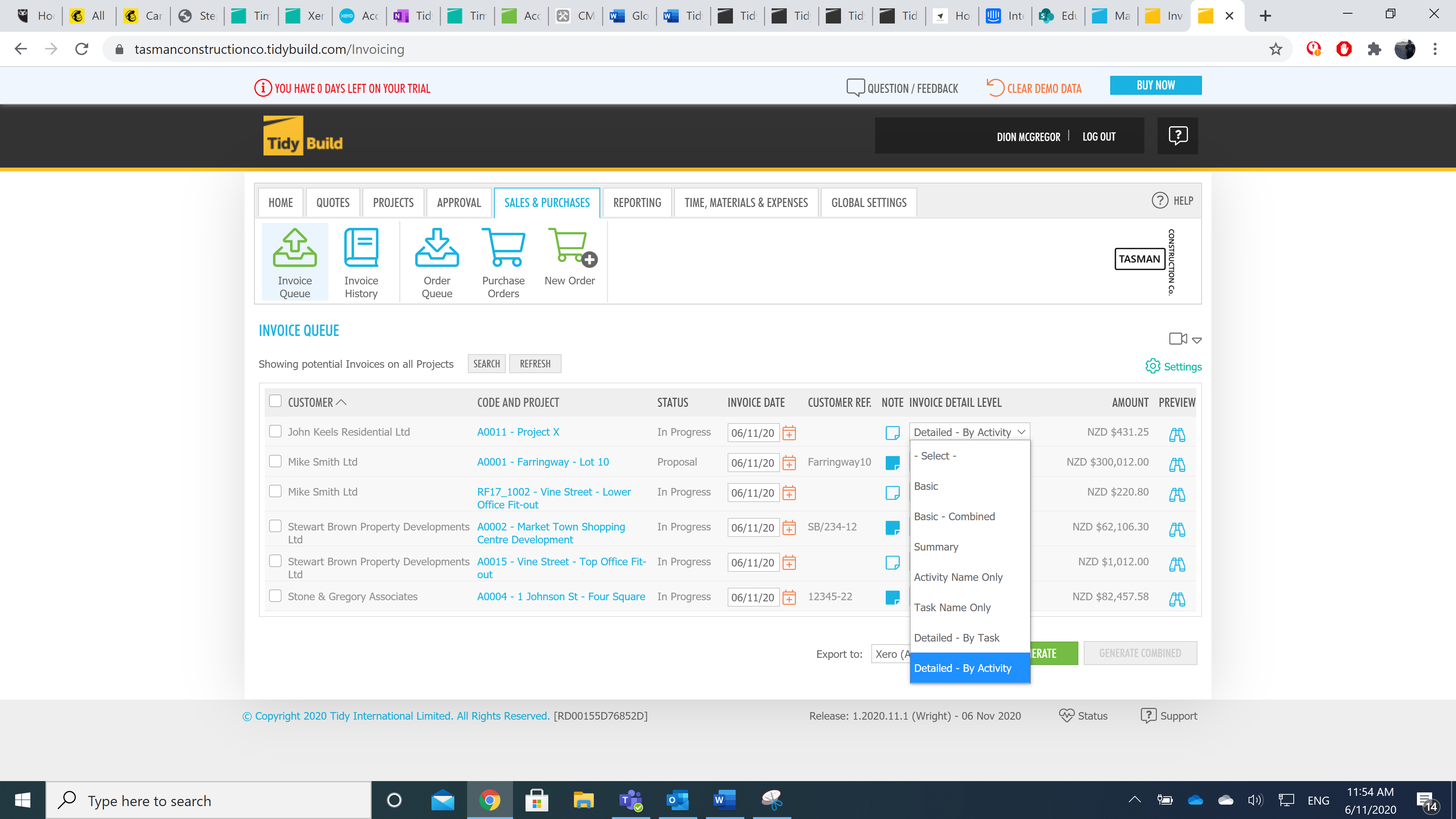
You can also choose the level of detail the invoice will display when it is generated.
These are:
Basic
Basic - Combined
Summary
Activity Name Only
Task Name Only
Detailed - By Task
Detailed - By Activity
Amount - The dollar amount of the invoice, relative to the currency set in global settings
Preview - Preview an invoice before you generate it.
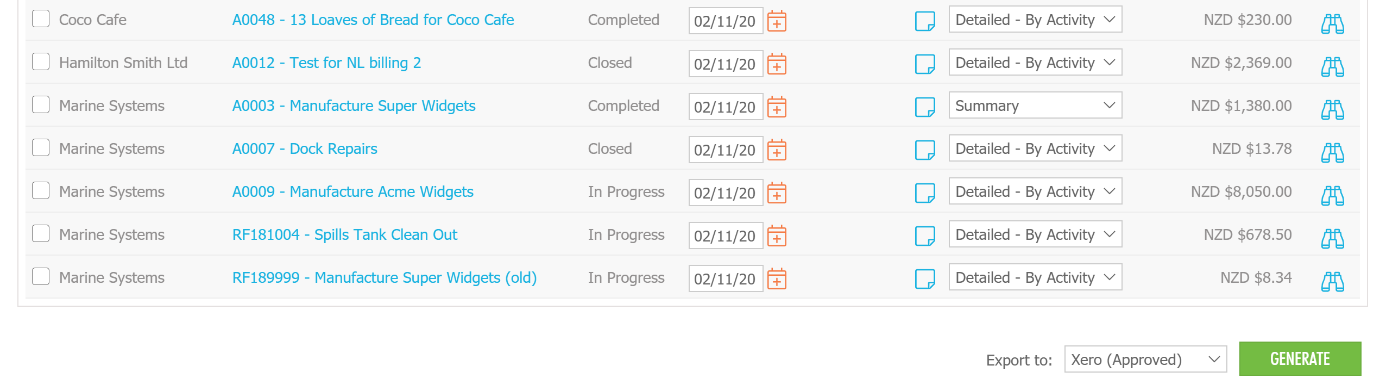
Once you have chosen the invoice(s) that you would like to send to the recipient, select the invoice to send by ticking the box on the left of the row.

Scroll down to the bottom of the screen. A drop-down box will display giving you the option to determine how you would like to export the invoice(s) you have chosen. The following options are available:
Screen
Xero (Draft)
Xero (Approved)
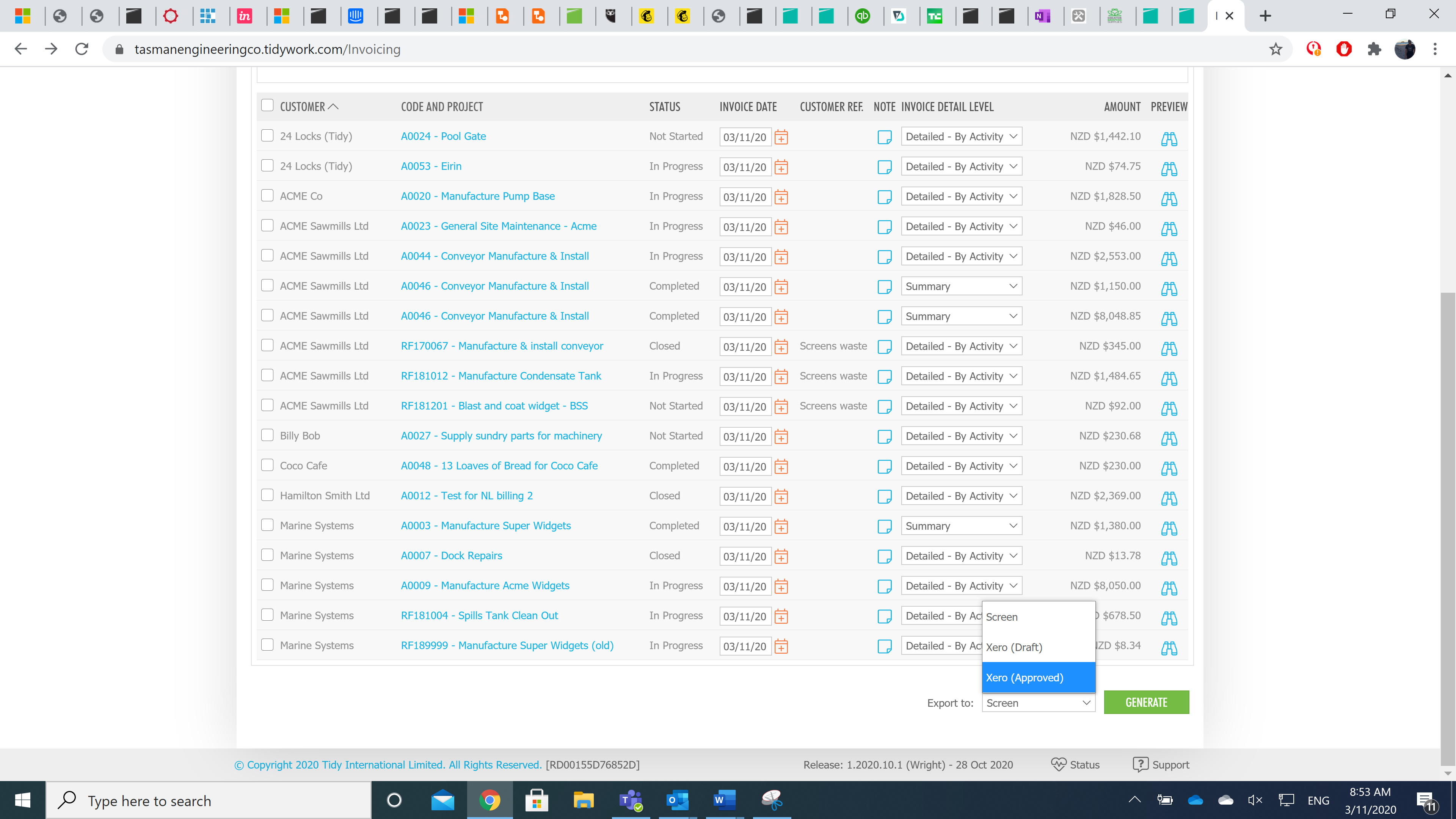
Once you have chosen how you want to export the invoice, click GENERATE.
If you select the invoice as Xero (Draft) or Xero (Approved), it will be sent to Xero when you click GENERATE. You can view or print the invoice after you click GENERATE.
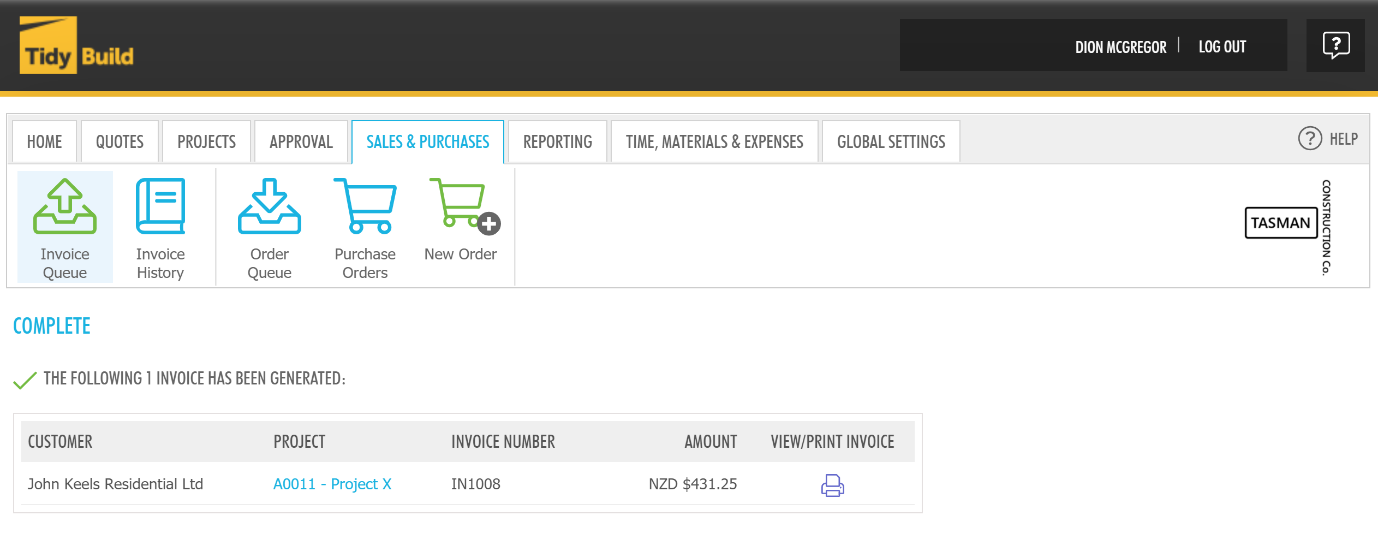
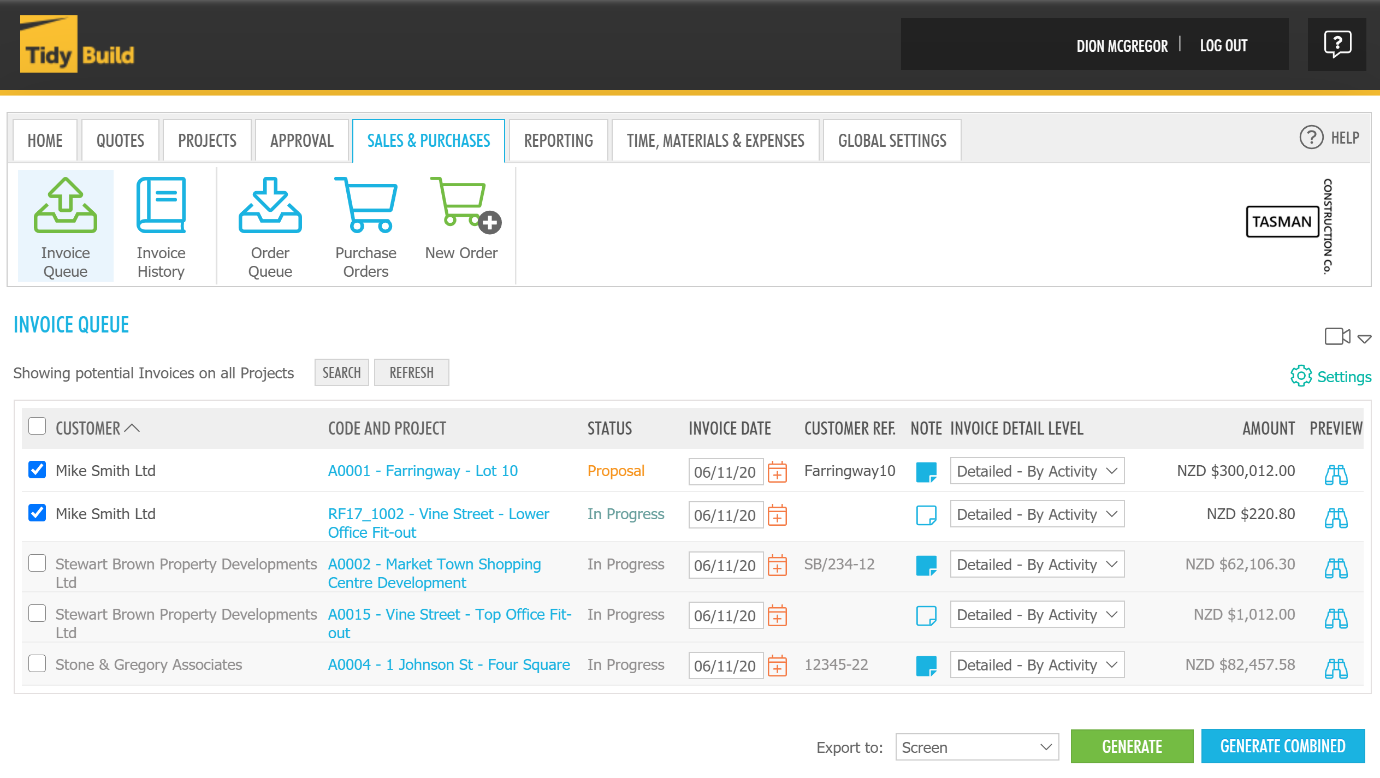
If you have multiple invoices you want to complete for the same customer, select multiple projects for the same customer.
Please note, If Combine Project Invoices is not visible within your Tidy account, you may be on the wrong plan. To view which plan this is available on, click here.
The generate combined box will appear and you can Generate Combined.
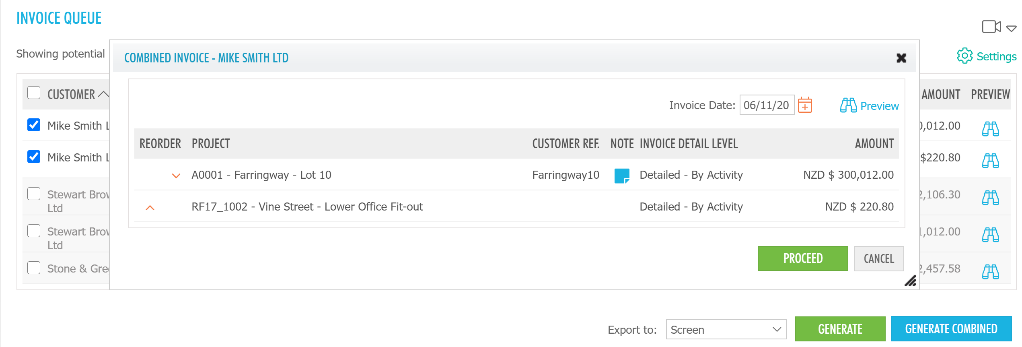
You will be presented with a pop-up box, after you review the information, click Proceed.
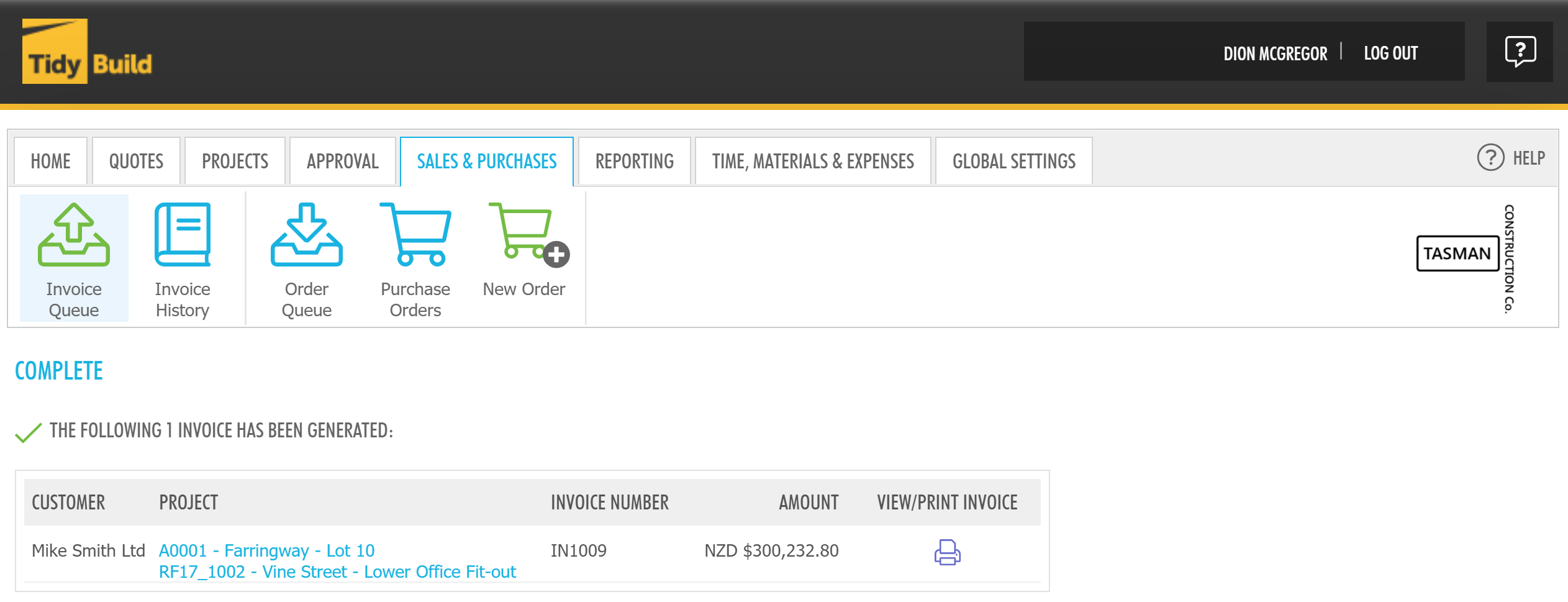
You will see invoices over multiple projects combined and generated.